Integrations
Raise tickets in Jira or ServiceNow from an issue, and send notifications to Microsoft Teams, Slack and email. A ticket is raised by a person, from the issue, so nothing opens in your tracker on its own. For each notification channel, choose which events it receives: a log goes silent, a forwarder goes silent, an API collector fails, a new root cause opens, an approval is waiting, or the score drops. Credentials stay in the Splunk password store and never reach the browser.
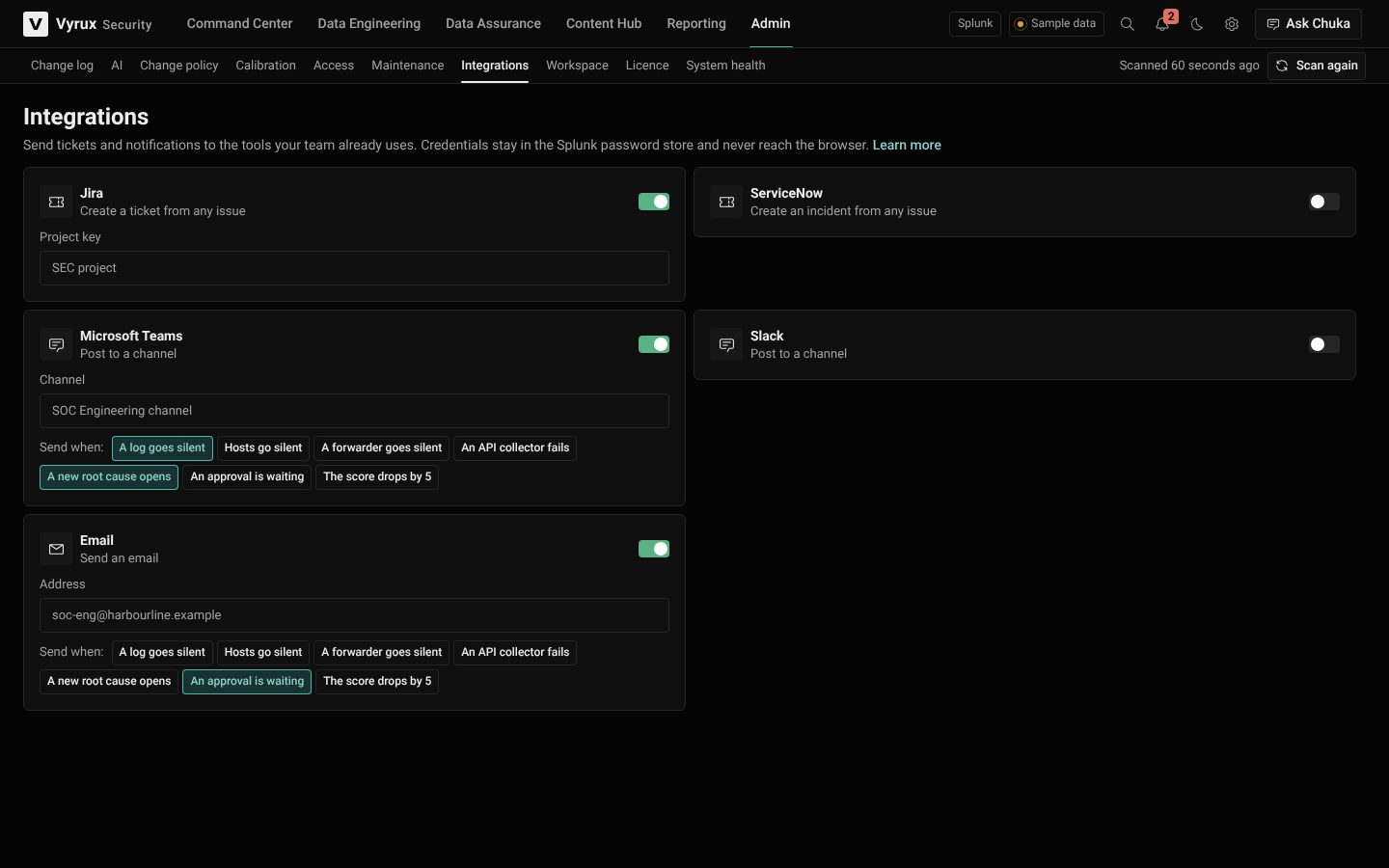
Test a connection
Each card has a test button. The result stays on the card until you test again:
- Email sends a real email to the address on the card, through Splunk's own mail settings. If it fails, the card says why and what to change.
- Slack and Teams post a test message to the channel.
- Jira and ServiceNow sign in and stop. No ticket or incident is created.
If a notification fails later, for example when a log goes silent overnight, the card shows the reason from the last background scan. A channel that fails is tried once in each scan, and what it missed is sent at the next scan.
Each event is sent once. It is sent again only when the fault comes again: a forwarder that came back and goes silent again, or a root cause that was closed for a day or more and is found again. When more than ten events of one kind happen in one scan, such as a site losing its link, the first ten are sent one by one and the rest in one message that counts them and names the first twenty.
Email needs Splunk's mail settings
Vyrux sends email with Splunk's sendemail command, so it uses the mail server set in Splunk under Settings, Server settings, Email settings. A new Splunk Enterprise install points to localhost, where nothing usually accepts mail, so the first test fails until this is set.
Ask your mail or messaging team which relay the Splunk server may send through. The usual answers:
| What your company uses | Mail host | Security | Sign-in |
|---|---|---|---|
| An internal SMTP relay | The relay name your mail team gives, such as smtp-relay.yourcompany.com:25 |
Often none inside the network, or TLS | Usually none. The relay allows the Splunk server by its address. |
| Microsoft 365 (Exchange Online) | smtp.office365.com:587, or your tenant's relay connector |
TLS | A mailbox allowed to send by SMTP, or none with a connector that allows the Splunk server's address |
| Google Workspace | The SMTP relay service host, port 587, set up by your Workspace admin | TLS | As set in the Workspace relay rule |
Also set Send emails as to an address the relay accepts, such as [email protected]. Many relays reject mail from any other sender.
On Splunk Cloud Platform, email goes through Splunk's own mail service and needs no setup.
What the test result means:
- Still set to localhost: no relay is set. Enter the one your mail team gives.
- Refused the connection: wrong host or port, or the relay does not accept this server. Ask the mail team to allow the Splunk server.
- Did not accept the user name or password: check the account. Some services block password sign-in for SMTP unless it is allowed for that account.
- Did not answer: the Splunk server cannot reach the relay. Check the port and any firewall between them.
- Would not deliver to this address: the relay does not accept the sender, or does not relay to outside addresses. Check Send emails as and the relay rules.
Hosts go silent
A separate event from "A log goes silent". It is sent when hosts stop sending to a log that rules read: once when it starts, and again when more hosts stop on the same log. The message names the hosts, the rules that read the log and the ATT&CK techniques at risk. It is off for every channel until you turn it on. See Hosts.